Multi-Search3
Showing posts with label Chrome. Show all posts

Sig3 - Simple Image Gallery For Linux

"No, no, this isn't a world band shortwave radio, this is Sig3-a tiny Linux image gallery generator!"

Sig3 is an image gallery generator for Linux. By making thumbnails of common image files in a folder, Sig3 helps you preview them and also open them with your browser where you can do almost anything and everything to them with browser addons and plugins.

For example, assuming you have installed ColorZilla for Firefox, when you run Sig3 and the image gallery comes up on a Firefox window, you'll also notice ColorZilla's colorpicker icon on the toolbar.[Enable it first with Menu->View->Toolbars->Navigation Toolbar]. Now click on it and move it over the thumbnails on the left panel of the Sig3 image gallery to view the color code of every pixel on every thumbnail! Just click to copy it to the clipboard so you can paste it without memorizing it! How cool! By identifying color codes of an image you can style the image's container or page with a matching or contrasting color in your web projects! This is just a little example. Think of all the image addons, plugins, tools, possibilities!

I built it on Zorin OS 7/Ubuntu Linux with a shell script and use it often myself. I am sure you'll find tons of uses for it. It's really easy to use, you can either type [sig3] from a terminal, [double-click] on the [sig3.bash] script or [Rightclick] on an image folder and select [sig3.bash] from the [Open With] menu to create and view the image gallery on your browser. Obviously, as mentioned later, you need to create a link called sig3 at /usr/bin and also make sure it is executable before you can do that. I used a Linux user account [jc] with root privileges. You might need root privileges to create the link at /usr/bin. Remember to disregard the square brackets used throughout for highlight and emphasis. Go ahead and read more.


UPDATE

Have you tried Sig3 on your laptop/pc yet? Have you at least tried the online demo? If you feel that things are a little slow or that the transitions don't work for you, it probably is the image size and number of images! Try it on a folder with small [clipart type] images and I guarantee that things will work perfectly! I experienced this myself! This is something I have also observed not just here, but also in many online image galleries; the more the number of images in the gallery and the bigger the sizes of images, the longer it takes for the images to load and the transitions to work. Also make sure your browser supports CSS3 transitions by comparing with other image galleries with transitions. Well, that's my humble opinion!


Multi-Search3 - The Mighty Little 3-in-1 Web Search Center


Looking for something on the Internet? You are at the right place. Start from here! Multi-search3! The "type keyword once, search the web with several search engines without retyping" web search center that can also be your wallpaper and music player!


1.NEED TO SEARCH? [WEB SEARCH CENTER]
1.Type the keyword ONCE and press [ENTER] or press the [Go] button to search with a random search engine, or
2.Type the keyword ONCE and press any of 16 search engines WITHOUT RETYPING to search with that search engine.
Press [HOME] or [CTRL-R] or press [ENTER] on address bar when you get stuck[nonstop horse etc] and press the [BackArrow] button to get the last-used keyword back to continue search.

2.DONE WITH YOUR SEARCH? [WALLPAPER]
1.Press the [Home] button or a [Bg] button,
2.Click on the [top left magnifier image] and
3.Press [F11] to see a magnificent desktop wallpaper!

3.NEED MUSIC IN THE BACKGROUND? [MUSIC PLAYER-Some newer browsers only]
The html5 music player at the bottom of the left box plays ONE mp3 or ogg file. Play the sample track or swap it with your own. Firefox plays ogg but not mp3.

NEW FEATURES

1.SEARCH RANDOM: [Go] button
Search the web with a random search engine from among the 16 on the top of the left box. You can type the keyword first thing as the page loads and press [ENTER] rapidly to search with a random search engine but you could also click on the [Go] button with your mouse. Remember you'd usually click on a search engine of your choice from the top 16 if you don't like to search randomly.
2.LAST-USED KEYWORD/SEARCH PHRASE: [BackArrow] button
Multi-search3 autosaves your last-used keyword and displays it across tabs, browser sessions and even reboots! But it works on the same browser only. If you search for "the best blog in the world" [hoping you won't find the one you hate most first on the search results :)] with Chrome, then it is auto-saved in Chrome only, you can't see it on Firefox or Opera. Press the [BackArrow] button to get it back.
3.HELP: [?] button
View helpful information.
4.FILE BROWSER: [Local] button
View local folders and files from the browser itself! Extremely useful to view html, text, image and pdf files in the browser itself! Be your age and avoid clicking on huge files, exe files or unknown file types though:) This is important.
5.YEAR CALENDAR WITH LIVE CLOCK: [Cal] button
View year calendar-2014 with a live clock. You know what, you can actually use it next year, the year after that, and on and on.
6.THEMES: [ThemeLt & ThemeDk buttons]
Press one of these buttons repeatedly till you get to a color of your choice for the theme of the search box on the left hand side. Also, if you change a background image and find that the default theme for that bg slot doesn't match the colors of the image, change it at the end of the INPUT tag. For example, to change the default theme of [Bg1], change the [setTheme] statement at the end below with a named[Eg. pink] or hexadecimal[Eg. #00ff00] color to match those of the image.
Tip!
After clicking on a [Theme] button, mouseover on it to find the active color.
Follow the same procedure to change the theme color for the other 5 images if needed.
7.HTML5 MUSIC PLAYER[Some newer browsers only]
Use the HTML5 music player to play one track, over and over again! Either listen to the sample here or swap it with your own favorite mp3 or ogg music files. Remember Firefox can play .ogg files but not mp3, Chrome can play both. Look for and change the code below in the Multisearch3.htm file to change the music file.


BUTTONS & USAGE
1.[Keyword Input Box] input button
Type keyword/search phrase in the input box and press [ENTER] or click on a search engine button to start. If you press the [ENTER] key or click on [Go] after typing keyword, results from a random search engine are returned by default. To accept a random keyword suggestion such as "top website" or "top blog", just start Multi-search3 and press [ENTER] or click on [Go]!
2.[Top left Multi-search3 magnifier logo]
Click on this to hide the search box on the left and the viewer on the right. Click on this again to show the search box again. Doubleclick not neccesary!
Press the [HOME] button, a [bg] button, then click on the magnifier image and then press [F11] to change to wallpaper mode for lunch-break etc. Click on the "Click Here To Continue" box to get back and [F11] again to exit [Fullscreen].
3.[Bg1-6] buttons
Display one of six background images.
4.[Home] button
Get back home.
5.[Readme] button
View readme.
6.[SearchEngineButtons]
"TYPE KEYWORDS ABOVE ONCE AND SEARCH WITHOUT RETYPING FROM HERE!" group
Use these to type keywords just once in the box at the top of the page and search with any of the many engines on the yop of the box without retyping.
"TYPE KEYWORDS AT EVERY SITE!" group
Use these to go to the search engine page and search there. You'll have to type the keyword at every one of the search engine sites. On Firefox, if you are offline and press a search engine button by mistake, the horse runs forever! On Chrome, it doesn't. If you're using the local button, both act normally.

REQUIREMENTS

Multi-search3 runs successfully on these platforms and browsers, feel free to try it on yours! Firefox is the most recommended browser for Multi-search3!
Zorin7[Ubuntu] Linux
Chrome 28[Full]
Firefox18[Full]
Opera12.16[*zo]


Windows7
Chrome32[Full]
Firefox28
[Full]
IE11
[Full]

Puppy Lucid5.1 Linux
Chromium12.0[*pc]
Firefox13[Full]
Opera11.60[*po]


*zo: Everything works on Zorin7/Opera12.16 except that you have to press [ENTER] on the address bar everytime after you use the [LOCAL] button.
*po: Except two bugs, everything else works on PuppyLucid510/Opera11.60
-You have to press [ENTER] on the address bar everytime after you use the [LOCAL] button.
-Music player is visible but won't play.
*pc: Music player is not visible on PuppyLucid510/Chrome.
Remember the music player appears or plays in newer browsers only.

POPUPS
Enable popups in your browser

JAVASCRIPT

Enable javascript in your browser.
[Tip] You can use this site for instructions.
http://www.enable-javascript.com/

DOWNLOAD AND INSTALL

STEP1
Download Multisearch3.tar.gz for [Linux-Zorin/Ubuntu] or similar platforms, Multisearch3.zip for [Windows7].
STEP2
Uncompress the file somewhere such as "/home/jc" [Ubuntu etc] or "C:\Jc\" [Windows7] to install Multi-search3 at "/home/jc/Multisearch3" or "C:\Jc\Multisearch3".
STEP3 
Now you can open Multisearch3.htm with your browser and search the Internet like before!

UNINSTALL
Too tired with all the web search? Just do two things to uninstall Multi-search3 from your pc/laptop completely. If you installed Multi-search3 at "/home/jc/Multisearch3" or "C:\Jc\Multisearch3"
STEP1
Open the file [Multisearch3RemoveLSAutosaveKeyword.htm] with your browser and press [OK].
STEP2
Delete the "/home/jc/Multisearch3" or "C:\Jc\Multisearch3" directory.
You're all done!

TIP! USE YOUR PICTURE AS BACKDROP/WALLPAPER!

Want to see your own pretty face as the background image? Or, maybe your favorite celebrity's face or a Bible verse, or a religious/inspirational image? Easy! Do it in just 5 steps! Just make sure the image has a minimum resolution of 1280x800 or else it may look ugly.
STEP1
Copy your image to the Multi-search3 folder.[eg. /home/jc/Multisearch3 or C:\Jc\Multisearch3]
STEP2
Open Multisearch3.htm with a text or html editor.
File Name: [/home/jc/Multisearch3/Multisearch3.htm or C:\Jc\Multisearch3\Multisearch3.htm]
STEP3
Change the image below. Put your image there instead.

STEP4
Change the image below. Put your image there instead.

STEP5
From now on, you should see your image when you start up Multi-search3 or press the [HOME] button! Open Multisearch3.htm [eg. /home/jc/Multisearch3/Multisearch3.htm or C:\Jc\Multisearch3\Multisearch3.htm] with your browser to confirm success. Do you see your image? Great! Simple! Multi-search3!

NOTE

1.Magnifier image: Clicking on the magnifier image hides everything and shows a small box. Click on it to display the search box again. A Doubleclick is not necessary.
2.Fullscreen: Press [F11] for fullscreen and press it again to exit.
3.[HOME],[Magnifier image],[Bg buttons]: You lose the results page when you press these.
4.Can't stop horse? Stuck? Press [HOME] generally or press [ENTER] on the address bar[Firefox] and continue if you find yourself in the middle of nowhere.
5.Dash: The name of this search tool is "Multi-search3", but the name of the file(and directory) is "Multisearch3".
6.Fullscreen: Can't see everything? Try using Multi-search3 on [F11] Fullscreen or use the browser's zoom controls!
7.Opera:After using [Local], refresh page by pressing [ENTER] on the address bar and continue using Multi-search3.
8.Problem: Stubborn "Search Phrase Empty. Type Valid Keyword Text Next Time. Searching With Default For Now" alert.
Solution: Remove single empty space at the beginning of your keyword/search phrase

CREDITS

While it's impossible to divine a software tool out of nothingness, things have gotten so interdependent on one another, very few useful apps can be built on just one technology which means software development requires a lot of web look up for paid and free software, open source tools, syntax check ups, tutorials, code samples, technical install and reference guides, forum suggestions etc. My sincere thanks are due first to God and His mighty ones above and also to online providers of the above and the goodheartedness of so many people everywhere, specially the ones below.
Background Images-wallpaper.imcphoto.net
W3c-Valid badge-hestia.venturas.org
Page-loading horse gif, Html5 music player, Sample mp3,ogg files, Some calendar parts-Some great sites on the web with these free tools!


FREE LICENCE

As with most sqlhtm free tools, Multi-search3 is free for your personal use. Please credit the author otherwise.

BUGS? ERRORS? FEEDBACK?

You can never predict how some search engines will change their query strings even if you were a prophet! Fortunately, everything here's good as of February 2014. In any case, let me know at Jerome_christopher@yahoo.com

CREATED BY


Multi-search2 - Better, Much Better!

Multi-search2 is out! Have you tried it yet? If you haven't, it is a websearch tool where you can type your keyword just ONCE and search more than 15 search engines without retyping! Throw in a handful more, add a showhide search box and stitch everything on top of 7 large wallpapers, and presto-you have a search tool worth every minute of your search time! The interface has a much cleaner and sharper look with a new logo, a page loading indicator, a new bg image, and a showhide toggle. Go ahead and try the all new Multi-search2 for yourself!

REQUIREMENTS


BROWSERS
Chrome 28[Recommended], Firefox 18, Opera 11.60 or IE9.
OPERATING SYSTEMS
Zorin Os7/Ubuntu, Windows7, Puppy Lucid5.1.


DOWNLOAD AND INSTALL


STEP1
Download Multisearch2.tar.gz for [Linux-Zorin/Ubuntu] or similar platforms, Multisearch2.zip for [Windows7].
STEP2
Uncompress the zip file somewhere such as "/home/jc" or "C:\Jc\" which creates "/home/jc/Multisearch2" or "C:\Jc\Multisearch2".
STEP3
Now you can open the Multisearch2.htm file there with Chrome28, Firefox18, Opera11.60 or IE9 browsers and search the internet like you never have before!


USAGE


[Topleft Multisearch2 Logo With The Magnifier]
Click on this to hide the search box on the left and the viewer on the right.
Doubleclick on this to show the search box on the left.
Press the [HOME] button, a [bg] button, then click on this and then press F11 to change to wallpaper mode for lunch-break etc.
[Bg] - Use these buttons for changing background images.
[Home] - Press this button to get back home.
[Readme] - Press this button for this readme.
[SearchEngineButtons]
"TYPE KEYWORD ABOVE ONCE AND SEARCH FROM HERE!" group
Use these to type keywords once in the box at the top of the page and search with any of these engines.
"GO THERE AND SEARCH!" group
Use these to go to the page and search there.


TIP! USE MULTI-SEARCH2 AS A WALLPAPER!


Add a little bit of visual elegance to your desktop! Choose from 6 beautiful backgrounds that you can also use as desktop wallpapers by pressing the F11[Full screen] key after pressing the [HOME] button, one of the six [BG] buttons and clicking on the topleft logo with the magnifier image.


TIP! USE YOUR PICTURE AS BACKDROP!


Want to see your own pretty/handsome face, your favorite celebrity's face or a Bible verse,  a religious or inspirational image as the [HOME] background? Easy! Do it in just 5 steps! Just make sure the image has a minimum resolution of 1280x800 or else it will look ugly.

STEP1
Copy your image to the Multisearch2 folder.[eg. /home/jc/Multisearch2 or C:\Jc\Multisearch2]
STEP2
Open the Multisearch2.htm file from where you uncompressed the tar.gz or zip file.
File Name: [/home/jc/Multisearch2/Multisearch2.htm or C:\Jc\Multisearch2\Multisearch2.htm]
STEP3
Swap images at this location.
Change twp-67427.jpg on line2 below. Put your image there instead.

STEP4
Swap images at this location.
Change twp-67427.jpg on line2 below. Put your image there instead.

STEP5
Verify success.
From now on, you should see your image when you startup Multi-search2 or press the [HOME] button! Open Multisearch2.htm [eg. /home/jc/Multisearch2/Multisearch2.htm or C:\Jc\Multisearch2\Multisearch2.htm] to confirm.
Do you see your image? Great! Simple. Multi-search2!

NOTE:


Name of this search tool : "Multi-search2"; Name of the file and directory: "Multisearch2"


DISCLAIMER


You can never predict how some search engines will change their query strings even if you were a prophet! Fortunately, everything here's good as of December 2013.


IMAGE CREDITS


Pixabay.com
Thewallpapers.org
A free image resource on the net[horse gif]


FEEDBACK? BUGS? ERRORS?


Please let me know at Jerome_christopher@yahoo.com


CREATED BY


"Jwhat" Jerome Christopher
sqlhtm.com

*Most of the content above comes from the Multi-search2 Readme file

Multi-search - Mighty Little Mega Web Search Center. Download Free!


ONLINE SEARCH MADE EASY!

There are a million search engines and search tools on the net. While use of one or two of these might be all that's needed for the bulk of the Internet users, there are those who need a lot more search sites. These will find Multi-search immensely useful. And do not forget that most people want to avoid having to manually go to each search engine's website and search there especially if you have a hard time finding what you're looking for. Multi-search has many of the most popular and widely used search engines on the net so you can never go empty handed.

MULTI-SEARCH IS POWERFUL, EASY, BEAUTIFUL AND FREE!

Multi-search is a web page where you can search the Internet with any of more than 15 search engines by typing your keywords JUST ONCE!  Simple. That's what Multi-search is all about. Download and try it on your own laptop/pc today!

SEARCH ENGINE GROUPING

There are three distinct groups you can see here. Click on either of the two images above to check these out.

GROUP I [Yahoo.com through Duckduckgo.com on the top of the box on the left]
This is my most favorite group as a developer of this search tool. Multi-search users need to type their keywords just ONCE and they can then click on the buttons of any of the first set of 16 search engines any way they like! Typing the keyword on every site is NOT NEEDED.

GROUP II [Lycos.com through Surfwax.com in the middle of the box on the left]
Then there is also a bunch of search sites that Multi-search can't get to work as with the first group above. Here you need to press a button to open it on the viewer on the right side, then type the keywords on their search bar. And repeat the same procedure if you click on another button from the second group again. Typing the keywords on every site IS NEEDED. Not perfect but okay I'd guess. 

GROUP III [Google.com and others like it]
You can't see this group on the box on the left. This group won't let Multi-search bring up their search sites on the viewer on the right so we can use it as group I or group II. You need to go to their website from your browser and search there all by yourself. Remember however, that the world doesn't end if Multi-search can't access Google. Others can, and so there's a workaround here anyway. Use and be satisfied with meta search engines such as dogpile, metasearch, metacrawler and others that bring up results from major search engines such as Google, Yahoo, Yandex and Baidu.
USE MULTI-SEARCH AS A DESKTOP WALLPAPER!

Add a little bit of visual elegance to your desktop! Choose from 5 beautiful backgrounds that you can also use as desktop wallpapers by 
  1. Pressing the [HOME] button
  2. Pressing one of the five [BG] buttons
  3. Pressing the [F11] Fullscreen key
REQUIREMENTS

BROWSERS
Chrome 28[Recommended], Firefox 18, Opera 11.60 or IE9.
OPERATING SYSTEMS
Zorin Os7/Ubuntu, Windows7, Puppy Lucid5.1.

INSTALL AND USAGE

STEP1
Download Multisearch.tar.gz [Linux-Zorin/Ubuntu] or Multisearch.zip [Windows7].
STEP2
Uncompress the file somewhere such as "/home/jc" which creates "/home/jc/Multisearch".
STEP3
Now you can open the Multisearch.htm file there with Chrome etc and search the world like you never have before!

YOUR PICTURE AS BACKDROP!  MULTI-SEARCH TIP

Want to see
  • Your own pretty/handsome face 
  • Your favorite celebrity's picture or
  • A Bible verse, religious or inspirational image 
as the [HOME] background? Easy! Do it in just 5 steps! Just make sure the image has a minimum resolution of 1280x800 or else it will look ugly.

STEP1
Copy your image to the Multisearch folder.[eg. /home/jc/Multisearch]
STEP2
Open the Multisearch.htm file from where you uncompressed the tar.gz or zip file.
File Name: [/home/jc/Multisearch/Multisearch.htm]
STEP3
Swap images at this location.
Change twp-61136.jpg on line2 below. Put your image there instead.

STEP4
Swap images at this location.
Change twp-61136.jpg on line2 below. Put your image there instead.

STEP5
Verify success.
From now on, you should see your image when you startup Multi-search or press the [HOME] button! Click on Multisearch.htm [eg. /home/jc/Multisearch/Multisearch.htm] to confirm.
Do you see your image? Great! Simple. Multi-search!

REMEMBER
  • Type keywords in the input box at the top of the box on the left side JUST ONCE and search the web with any of 15+ search engines from the top group!
  • Press a button from the middle group to open the website on the viewer on the right hand side and then enter the keywords AT EVERY SEARCH ENGINE SITE. 
  • Use Multi-search as a wallpaper! Press [HOME], a [BG] Button And [F11] to turn Multi-search into a desktop wallpaper at coffee-break or lunch-break!
Well I guess it's time to download Multi-search free and try it out for yourself!


SOME SEARCH-RELATED RESOURCES

After reading this article, optimist said, "Nice read". Pessimist said, "Oh I miss the 70s and 80s!"

@Font-face - There Is More To Fonts Than Font-Family!

@FONT-FACE CSS AT-RULE. 
[Disclaimer: The gen-fonts.sh shell script using  CSS @font-face was tested on Chromium[12.0.742.112 ] and Opera[11.60] browsers on Puppy Lucid5.1 Linux. Check if your OS and your browser support it to make sure.]

gen-fonts.sh   VIEW SAMPLE   DOWNLOAD SCRIPT

GET THE SAME LOOK EVERYWHERE WITH @FONT-FACE. GUARANTEED!

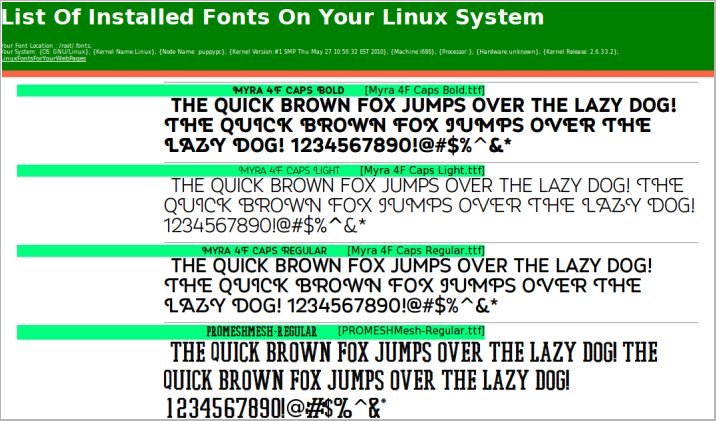
Even if someone had the worst website in the world, people might still flock to that site if only it had a great-looking font scheme. However simple or sparse that website, if it had a clean font scheme and used plenty of white space in a smart way, it could still make a lot of people visit often. The white color has the amazing quality of bringing out the real character of any and every font especially at higher sizes. In the old days it was so easy to just get by with some basic fonts and the header and paragraph tags. Not so anymore. The web has grown as if on steroids over the past decade and things are not simple anymore. While configuring a good font for your website with the @font-face css rule may look complex and cumbersome, it doesn't have to be so. Definitely not if you choose to use the simple scheme described in this article. I have been using Puppy Lucid Linux5.1 for over a year now and I have come up with a shell script which discovers and displays all installed fonts on a Linux system by dynamically generating code for the @font-face rules in the style block in the header and also the code for the body text in a webpage you can view with your browser. It may even show you the simplest way to use @font-face rules in your own webpages to make sure anyone and everyone in the whole wide world would see the same font display!
Sample wordart with Font3dTemplates
NOW YOU SEE, NOW YOU DON'T

Don't you hate it when the text and image editors on your Linux system can display all installed fonts correctly but your web pages can't? It happened a lot to me on my Puppy Lucid Linux5.1 and that's the reason for this article. Even after I installed the fonts correctly and used body text with font-family in the tags, it still wouldn't show all fonts! If you guessed not using @font-face in the stylesheet with font-family and physical file location as the reason, you are web smart! And once I did it, it was like going digging and finding gold. All fonts sprang to life so spectacularly I couldn't believe my eyes! 

FONT LOCATIONS AND INSTALLATION ON A LINUX SYSTEM

PUPPY LUCID5.1 LINUX

Step 1: Copy the ttf or other font files to /root/.fonts directory. You may also copy the true type fonts to the /usr/share/fonts/default/TTF directory.
Step 2: Run the fc-cache command to cache the fonts.
fc-cache -fv
Step 3: Restart your browser for changes to take effect.

OTHER LINUX FLAVORS [MAY VARY] 

Step 1: Download and copy the true type font files to /usr/share/fonts/default/TTF directory.
Step 2: Restart your browser for changes to take effect.

NOTE 1. Soft Links
You may also keep the font files at any directory and create soft links to font locations like this:
ln -s /your-font-directory/your-font.ttf  /root/.fonts
or
ln -s /your-font-directory/your-font.ttf  /usr/share/fonts/default/TTF

NOTE 2. Puppy Linux Font Locations
I'm not sure, but the following information probably comes from the Puppy Linux documentation or the helpful puppy forums.
fc-cache -fv command caches fonts from these directories and cleans some of them at the end. 
/root/.fonts
/usr/share/fonts
/usr/share/fonts/default
/usr/share/fonts/default/TTF
/usr/share/fonts/default/Type1
/usr/share/fonts/truetype
/usr/share/fonts/truetype/ttf-liberation
/usr/share/X11/fonts
/usr/share/X11/fonts/TTF
/usr/share/X11/fonts/Type1
/usr/share/X11/fonts/misc
NOTE 3. Script And Fontlist Webpage Speed
The script script runs fast. The webpage fontlist may be fast or slow THE FIRST TIME depending on the number of fonts in the font directory.

NOTE 4. Treasure-hunt Your Font Directories
Try running the script on all the directories returned by running the command 
fc-cache -fv. Trace soft links to their source files if needed.

NOTE 5. As Few Fonts As Possible
Use only the minimum-required number of fonts at your website as it may become unbearably resource-hungry.

SHELL SCRIPT TO GENERATE AND VIEW ALL INSTALLED FONTS ON YOUR LINUX SYSTEM [gen-fonts.sh]

gen-fonts.sh-sample
Font list display produced by gen-fonts.sh

Okay, so we now know how to install fonts on Puppy and other Linux systems. Let us go ahead and see how to use the @font-face rule in your embedded style sheet. First we will get the font location and loop to read one font at a time to generate the @font-face code in the head section and then we will loop one more time to create the code, this time for the anchor or paragraph tags inside the body of the web page.

The script below combines both steps to dynamically produce the list of all installed fonts on your Linux system in a web page.

INSTALLATION OF THE SCRIPT 

GUI

1.DOWNLOAD SCRIPT and extract the file gen-fonts.sh at /tmp.
2.Change the first 2 lines of the script for font directory and the browser string
3.With a file manager like ROX-filer, right-click on the gen-fonts.sh file, and check the 3 boxes at the end to make all 3 executable
4.Click on the script to generate and view the list of installed fonts in your system. 

COMMAND LINE 

1.DOWNLOAD SCRIPT and extract the file gen-fonts.sh at /tmp.
2.Change the first 2 lines of the script for font directory and the browser string
3.Open up a terminal and type cd /tmp; chmod 755 gen-fonts.sh
4.Type ./gen-fonts.sh to run and view the installed fonts in a html file


ADAPTING THE SCRIPT FOR USE IN WEBSITES ONLINE

  • First, copy your font files to a directory on your server, such as public-html/fonts or www/fonts, both of which point to the same location.
  • Second, taking the code below as a sample , create @font-face rules for every font in the style block of the header. Eg.
        <head><style>
        @font-face {font-family:'Bigfish'; src:url('fonts/Bigfish.ttf'); }
        </style></head>

  • To end, put your text within tags such as "a" or "p" in the body. Eg.
  <a class="btxt" href="">List Of Installed Fonts On Your Linux System</a>

Simple sample page using @font-face for your website page

<html>
<head>
<style> 
@font-face {font-family:'Bigfish'; src:url('fonts/Bigfish.ttf'); }
.btxt {font-family:'Bigfish'; font-size:15px; }
</style>
</head>
<body> 
<a class="btxt">List Of Installed Fonts On Your Linux System</a> 
</body>
</html>

When we use fonts this way on the server hosting our website, everyone will see the same font on their laptop or pc even if they don't have this font installed. The only requirement is that their browsers must support the @font-face rule.


   Did you know?    
   Typing the following command helps create a sorted display of available fonts   
fc-list|sort   


Sample wordart-Font3d

HAVE YOU DOWNLOADED MY THREE FREE FONT PROGRAMS YET????

I have created four free font tools, three of which are free downloads. These three come with install and uninstall scripts that can be used for viewing the installed fonts on your Windows laptop or pc and also to view your text in all installed fonts and generate 3d wordart. Take a minute to read about these at sqlhtm.com. The fourth is an online web application. Watch the slideshow and play with the 4th tool online at sqlhtm.com! These are sure to be great additions to your toolset for online and offline web or other projects.


1.MyFontYourFont
Reads all your installed fonts on Windows and generates and shows sample text in horizontal and vertical formats in various sizes.


2.MyFontYourFontHot
Reads your text and displays them with all installed fonts so you can select the best-looking one for your blog or website article.


3.Font3dRandom
This is one of my bigger font projects which lets you create 3d html oneliner wordart with a totally endless variety of font and color combinations.


4.Font3dTemplates
This one's my biggest effort on 3dfont wordart program till date. The first version which is an online basic version creates simple wordart with installed regular and other floral and decorative fonts on Windows XP. When the regular fonts we use in everyday life or magnified, colored and shaded, we see MAGIC! Even fonts with your portraits or those of the celebrities can be enlarged, colored and 3d-shaded! It's that simple. The newer version currently under development has the really cool image and text drag-n-drop, local storage html5 features among others compared to the older version.

SOME VALUABLE FONT-RELATED WEBSITES ON THE WEB


After reading this article, optimist said, "Nice read". Pessimist said, "fc-list".


June 2013 - Sqlhtm Crosses Two Major Milestones!

The month of June, 2013 has been remarkably quiet for this blog and also the sqlhtm.com website. There has not been a whole lot of updates for several weeks since I am fighting all odds and keeping myself busy with adapting  Font3dTemplates wordart program for Linux (You must take a look at some samples made from this online application to start with!). So I really couldn't believe it when a couple of major milestones passed by very quietly and I was lucky to notice them! By the way, I am sure you'll love the fact the new version will have html5 drag and drop images, resize, css shapes and more new features.


Okay, here is the deal on the two milestones both of them all-time-highs for the sqlhtm website and the blog! [Hey, don't compare these with your-great-blog or your-great-website, okay?]


Blog - 10000 pageviews/month 
First we have crossed the 10,000 pageviews/month landmark on the sqlhtm blog [this blog, sqlhtm.blogspot.com]. 


Website - 3000 visits/month
We also have crossed the 3000 visits/month on the website [sqlhtm.com] for the first time!


It's so unbelievable! Awesome! 
Thank you dear readers and visitors!
Before you leave, don't forget to view the top pages on sqlhtm.com listed below and also download your choice of free scripts and tools!


BlogCollage


Blog Collage - Top Random Posts In No Particular Order

Mouseover the images for title and comments